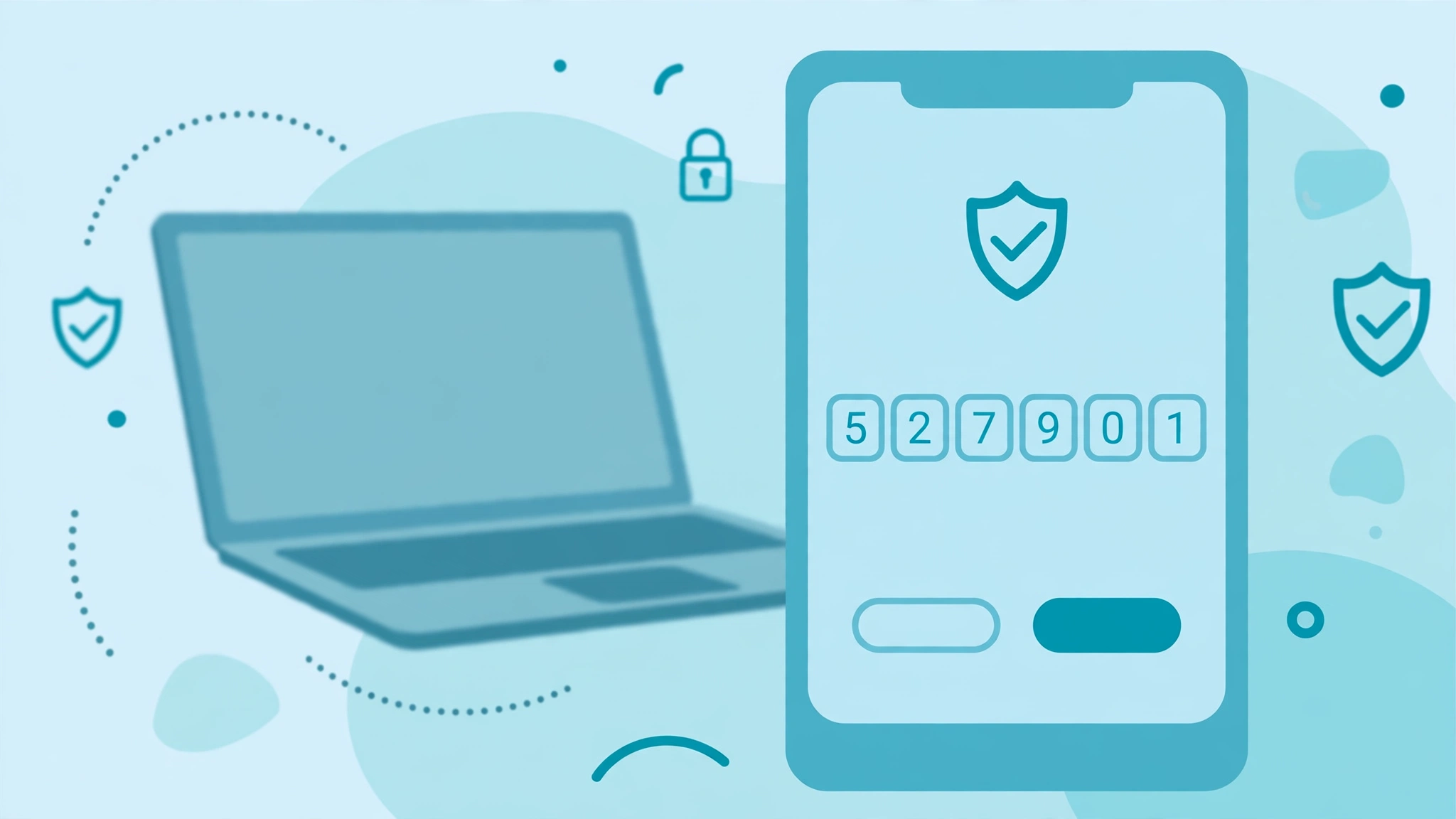
You type your password correctly, hit enter — and then your phone buzzes with a six-digit code. That extra step is two-factor authentication, usually shortened to 2FA. It is one of the simplest and most effective things you can do to protect your online accounts, and once you understand how it works, setting it up takes only a few minutes per account.
What Is Two-Factor Authentication?
Two-factor authentication means proving your identity in two different ways before you can sign in. The first factor is something you know — your password. The second factor is something you have — usually your phone — or something you are, like a fingerprint.
The idea is simple: a password alone is a single point of failure. Passwords get stolen in data breaches, guessed, phished, or reused across sites. If someone gets your password, they get your account. With 2FA turned on, the stolen password alone is not enough. The attacker would also need your phone or your fingerprint, which is a much harder target.
You already use two factors in everyday life. An ATM card plus a PIN is two-factor authentication: the card is something you have, the PIN is something you know. Losing one without the other is not enough to empty your account. 2FA brings the same logic to your email, banking, and social media accounts.
How the Second Factor Works: The Main Methods
Not all second factors are equal. Here are the methods you will actually meet, from weakest to strongest.
Text message (SMS) codes. The site sends a six-digit code to your phone number by text. This is the most common method because it needs no app and works on any phone. It is also the weakest: texts can be intercepted, and attackers can sometimes trick a mobile carrier into moving your number to their SIM card (a “SIM swap”). Still, SMS 2FA is far better than no 2FA at all — use it when nothing better is offered.
Authenticator app codes. An app such as Google Authenticator, Microsoft Authenticator, or Authy generates a new six-digit code every 30 seconds. You scan a QR code once during setup, and after that the codes are generated on your device — no mobile signal needed, and no text for an attacker to intercept. This is the method most security experts recommend for everyday accounts, and it is free.
Push notifications. Some services send an “Approve sign-in?” prompt to an app on your phone, and you tap Approve or Deny. This is convenient and resists phishing better than a typed code, because there is no code for an attacker to trick you into handing over.
Security keys. A small USB or NFC device, such as a YubiKey, that you plug in or tap when signing in. The key proves cryptographically that you are on the real site, which makes it the strongest option — phishing pages cannot fake it. Security keys cost money and take a little setup, so they make most sense for your most important accounts: email, banking, and password manager.
Biometrics. A fingerprint or face scan on your phone or laptop. Convenient and hard to steal, but it usually works as part of the sign-in on a device you already own rather than as a standalone second factor for a website.
Why Passwords Alone Are Not Enough
Three everyday problems make passwords unreliable on their own. First, data breaches: when a service is breached, millions of passwords leak at once, and attackers test those same email-and-password pairs on other sites. If you reuse a password anywhere, one breach can unlock many accounts. Second, phishing: a convincing fake login page can capture your password in seconds, and a good fake is hard to spot even for careful people. Third, guessing: weak and common passwords are cracked automatically in bulk.
Two-factor authentication does not fix any of those problems — but it makes them far less dangerous. A leaked password, a phished password, or a guessed password all stop at the second step. That is why security teams treat 2FA as the single highest-value habit after using unique passwords. A password manager handles the unique-password half of the job; 2FA handles the rest.
How to Set Up Two-Factor Authentication
Setup is nearly the same everywhere, and it takes about five minutes per account. Start with your email account — it is the key to all the others, because password resets go there.
1. Find the security settings. In your account settings, look for “Security,” “Sign-in & security,” or “Two-step verification.” Google, Microsoft, Apple, Facebook, Instagram, and most banks all have it under a security heading.
2. Choose your method. Pick an authenticator app if it is offered; choose SMS only if no app option exists. Some services offer a security key option as well.
3. Scan the code or confirm your number. For an app, scan the QR code shown on screen with your authenticator app, then type the six-digit code the app shows to confirm the link. For SMS, enter the code texted to you.
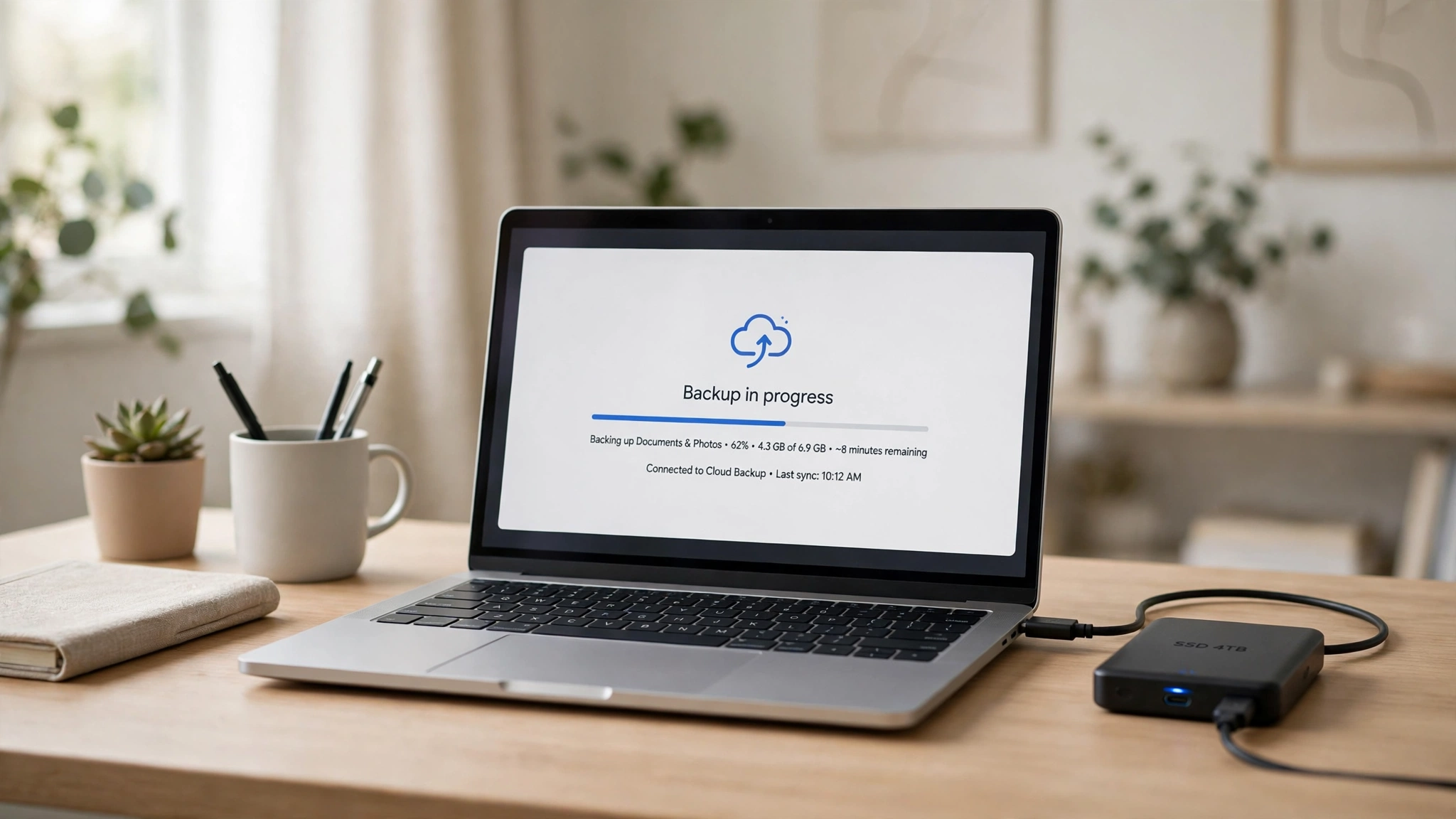
4. Save your backup codes. Most services give you a set of one-time backup codes during setup. Save them somewhere safe — printed on paper in a drawer, or in your password manager. These codes are your way back in if you lose your phone, so do not skip this step and do not store them in the same place as your password.
5. Add a second backup method if offered. Some services let you register a second phone number, a second authenticator device, or a security key. A backup method is what turns a lost phone from a crisis into a minor inconvenience.
Which Accounts Should You Protect First?
You do not need to set up 2FA on every account on day one. Protect the accounts in this order and you cover most of the risk.
Email first. Your email can reset the password of almost every other account you own. If someone gets into your email, they can get into everything else. Turn on 2FA for your email before anything else.
Banking and money. Bank accounts, payment apps, and investment accounts come next. Most banks already require some form of second factor; make sure yours is turned on and set to the strongest method they offer.
Your password manager. If you use one, it holds every password you own. Protect it with 2FA and a strong master password.
Social media and cloud storage. These hold your photos, contacts, and identity — and they are the accounts most often used to impersonate you. Cloud storage accounts (Google Drive, iCloud, Dropbox) deserve 2FA because they often contain copies of IDs and documents.
Work accounts. If your employer offers 2FA, use it. A compromised work account can expose your colleagues and your company, and many employers now require it anyway.
What Happens If You Lose Your Phone?
This is the worry that stops most people from turning 2FA on, and it has a straightforward answer: use your backup codes, or use the account recovery process. That is exactly why step 4 above matters. With backup codes saved, you sign in with a code and then set up 2FA again on your new phone.
A few habits make recovery painless. Keep backup codes somewhere you can reach without your phone. If your authenticator app supports encrypted cloud backup (Authy does; Google Authenticator now offers account sync), turn it on. And when you replace your phone, move the authenticator app over before wiping the old one — exporting accounts from the old phone is a two-minute job, recovering them afterward is not.
Common Mistakes to Avoid
Turning it on for one account only. 2FA protects the accounts it is enabled on. The one you skipped is the one an attacker will find.
Sharing codes with anyone. A real support agent will never ask for your 2FA code. Anyone asking for it is trying to get into your account. The same applies to codes sent by text — never read a code out to someone who called you.
Approving push notifications you did not trigger. If your phone asks you to approve a sign-in you did not start, tap Deny and change your password immediately — someone has your password and is waiting for you to let them in.
Using SMS for your most important accounts. SMS is fine as a fallback, but for email and banking, an authenticator app or security key is the better choice where available.
Two-Factor Authentication and Public Wi-Fi
2FA is especially valuable when you sign in away from home. On a public network — a hotel, airport, or café — your connection is easier to snoop on than your home network, and fake login pages are common. 2FA means that even if someone captures your password on an open network, they still cannot get in without your second factor. It is not a replacement for basic network caution — read our guide to staying safe on public Wi-Fi while traveling — but it is the safety net underneath it. A VPN can add another layer of protection on untrusted networks, but a VPN does not replace 2FA: the two solve different problems.
Frequently Asked Questions
Is two-factor authentication the same as two-step verification?
Mostly, yes. The terms are used interchangeably by different companies. “Two-factor” is the technical term; “two-step verification” is what Google and some others call the same thing.
Does 2FA slow down signing in?
By a few seconds. Authenticator apps and push approvals add one tap or one six-digit code to the process. Most services also offer a “remember this device” option, so you only see the second step on new devices.
Can I use the same authenticator app for all my accounts?
Yes. One authenticator app can hold codes for dozens of accounts — email, banking, social media, and more. Each account gets its own entry in the app.
What if a website does not offer 2FA?
Use a long, unique password for that account, stored in a password manager, and check whether the service offers login alerts by email so you are told about new sign-ins. If a service holding sensitive data offers no 2FA at all, that is worth knowing when you choose between competing services.
Final Thoughts
Two-factor authentication is the closest thing to a free lunch in online security: a few minutes of setup, a few seconds per sign-in, and a dramatic drop in the risk that a stolen password becomes a stolen account. Start with your email, then your bank and password manager, then everything else. Save your backup codes, prefer an authenticator app over SMS where you can, and never share a code with anyone. Passwords will keep leaking and phishing pages will keep getting better — the second factor is what makes that stop mattering.