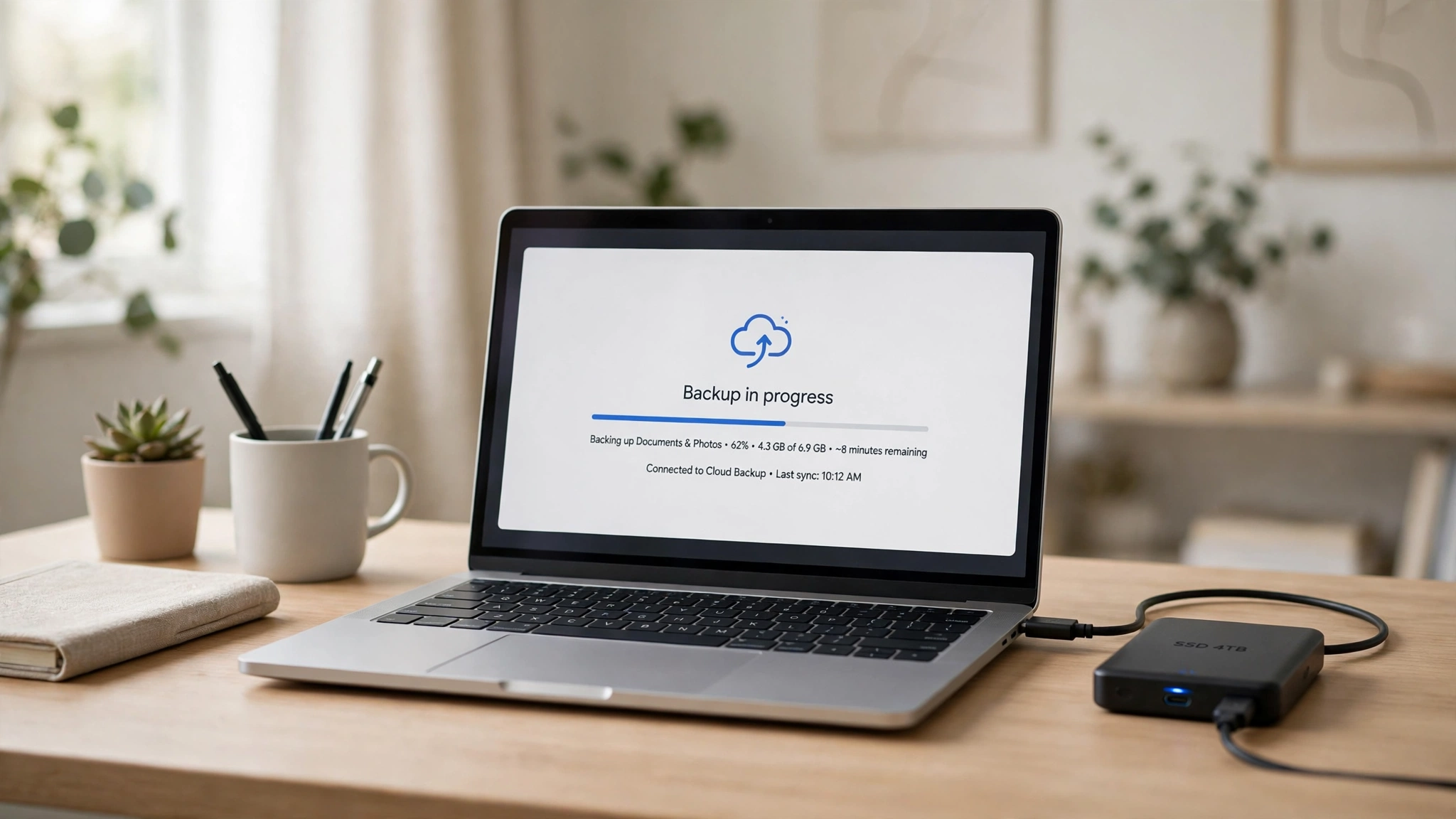

Most people think about backing up their files the day after they lose them. A hard drive fails, a laptop is stolen, a spilled coffee kills a keyboard — and years of photos, documents and work vanish in an afternoon. The fix is simple, cheap, and takes less than an hour to set up. This guide shows you how to back up your computer files safely, step by step, without jargon and without buying anything you do not need.
The 3-2-1 Rule: The Only Backup Principle You Need
Every serious backup plan follows the same rule, known as 3-2-1:
- 3 copies of anything important — the original on your computer, plus two backups.
- 2 different kinds of storage — for example, an external hard drive and a cloud service. If one type fails, the other still works.
- 1 copy offsite — somewhere other than your home, so a fire, flood or burglary cannot take everything at once. A cloud backup counts as offsite.
You do not need to memorise the numbers. The idea is what matters: one copy is not a backup, and two copies in the same place are barely better. Spread your copies across different places and different kinds of storage, and you are covered against almost everything that can go wrong.
Step 1: Decide What to Back Up
Start by listing what you would actually miss. For most people it is a short list:
- Photos and videos — usually the most irreplaceable files on any computer.
- Documents — tax records, contracts, CVs, school or work files.
- Work projects — anything you are actively working on, including drafts.
- Passwords and account details — or at least the master list that lets you recover them.
You do not need to back up your operating system or your installed programs. Those can be downloaded and reinstalled. Back up your data — the files only you have. If you are short on space or time, back up the irreplaceable things first and add the rest later.
Step 2: Pick Your Backup Method
There are two main ways to back up, and the safest setup uses both.
An external drive. A USB hard drive or SSD that you plug in, copy your files to, and store somewhere safe. It is fast, it works without internet, and you control it completely. A 1TB or 2TB drive is enough for most people and lasts for years. The weakness: if it sits next to your computer, the same fire or theft can take both.
A cloud backup service. Your files are copied to secure servers over the internet — services such as Google Drive, OneDrive, iCloud or a dedicated backup service. The advantage is automatic offsite storage: your files survive even if your house does not. The trade-off is that you need internet to restore large amounts of data, and you are trusting a company with your files, so choose one with a clear privacy policy and enable two-factor authentication on the account.
The practical answer for most people is both: an external drive for fast, local copies and a cloud service for the offsite copy. That is the 3-2-1 rule in action, and it costs very little — many cloud plans include enough free storage for documents, and a basic external drive is a one-time purchase.
Step 3: Set Up Automatic Backups
Manual backups fail because people forget. Automatic backups work because they do not depend on your memory. Both Windows and macOS include free built-in tools:
- Windows: File History (in Settings, under Update & Security, then Backup) copies your Documents, Pictures, Desktop and other personal folders to an external drive on a schedule you choose. Windows Backup can also save a copy to OneDrive.
- Mac: Time Machine (in System Settings) backs up your entire Mac to an external drive, automatically, every hour — and lets you restore a single file or the whole machine.
Set the schedule and then leave it alone. Daily is ideal; weekly is fine for most home users. The key step is turning it on — a backup system that is configured beats a perfect system that was never set up. If you use a cloud service as well, install its app and turn on automatic sync for your important folders, so new files are copied within minutes of being saved.
Step 4: Test Your Backup
A backup you have never tested is a hope, not a backup. Drives fail silently, cloud syncs pause, and settings change after updates. Once a month, take five minutes to check:
- Open your external drive or cloud folder and confirm that recent files are actually there.
- Restore one file — a photo, a document — and open it to make sure it is not corrupted.
- Check that your backup software is still running and has not reported an error.
If anything is missing, fix it the same day. Finding out your backup was broken during a real emergency is the worst possible time to discover it.
Protecting Backups from Ransomware and Theft
A backup only helps if it survives the same disaster that took your original files. Two habits make a real difference:
- Disconnect the drive when you are done. Ransomware encrypts every drive it can reach, including an external drive that is still plugged in. Back up, then unplug the drive and put it in a drawer — or better, in a different room.
- Lock your accounts. Your cloud backup is only as safe as the account that protects it. Use a strong, unique password and turn on two-factor authentication. If you struggle to remember complex passwords, our guide to password managers explains how to store them safely.
Be careful with public Wi-Fi, too. If you ever run a cloud backup from a cafe, hotel or airport network, your files travel over a connection you do not control. Our guide on how to protect your data on public Wi-Fi covers the precautions that matter — and if you use public networks often, a VPN adds another layer, as explained in our VPN for beginners guide.
Common Backup Mistakes to Avoid
- Only one copy. A file on your laptop and nowhere else is not backed up. It is one accident away from gone.
- Two copies in the same place. A backup drive sitting on the same desk as your laptop shares its fate in a fire or burglary. Keep at least one copy offsite.
- Never testing. See Step 4. A monthly five-minute check is the whole job.
- Backing up everything except what matters. People often back up their music and movies — which can be re-downloaded — and forget the family photos that cannot be replaced. Back up the irreplaceable first.
- Waiting for the “right” time. The right time to set up a backup is before you need it. A basic setup takes under an hour.
FAQ: Backing Up Your Computer Files Safely
How often should I back up my files?
As often as they change. For active work files and photos, daily automatic backups are best. For documents that rarely change, weekly is enough. The simplest answer: turn on automatic backups and stop thinking about it.
Is cloud backup safe?
For most people, yes — reputable cloud providers encrypt your files in transit and at rest, and their data centres are far better protected than a drawer at home. Use a strong unique password and two-factor authentication, and avoid uploading highly sensitive files to any service you have not checked first.
How much storage do I need for a backup?
Add up the size of your Documents, Pictures and Desktop folders — that is your real number. Most people need between 100GB and 1TB. A 1TB external drive covers the majority of home users; if your photo library is large, go to 2TB so you have room to grow.
What if my external drive fails too?
That is exactly why the 3-2-1 rule keeps a second backup in a different place. If the drive fails, restore from the cloud copy. If the cloud account has a problem, restore from the drive. One failure should never be the end of your files.
Final Thoughts
Backing up your files is not a technical project — it is a fifteen-minute habit. Pick an external drive, turn on your computer’s built-in backup tool, add a cloud service for the offsite copy, and test a restore once a month. That is the whole system. The day your hard drive fails, you will not remember the hour you spent setting it up. You will only be glad you did.